Post a Truck from a Loadboard Trip
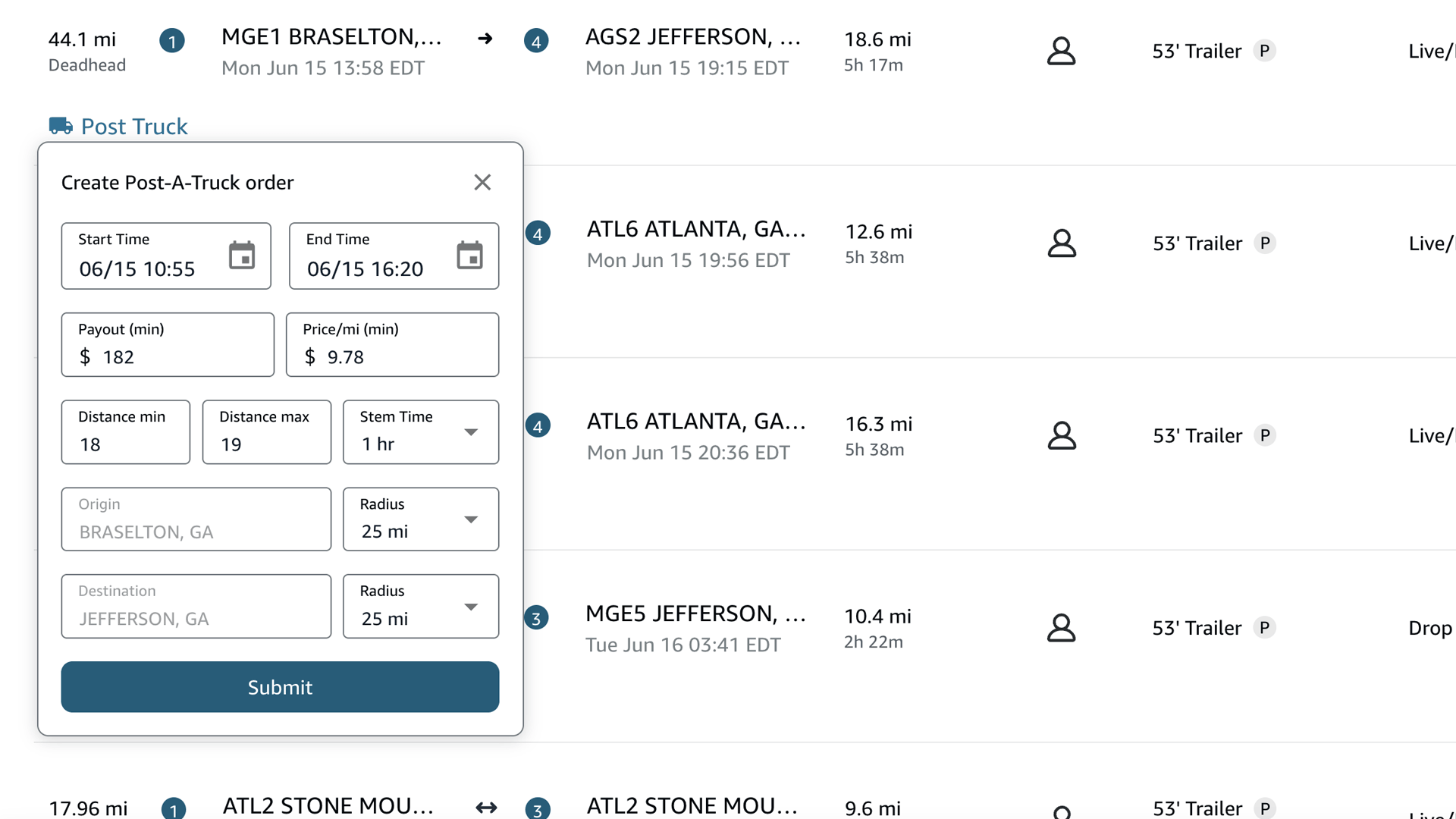
Posting a truck on Amazon Relay usually means filling in the whole form by hand. Rocket gives you a shortcut: with Post-a-Truck turned on, it adds a small Post Truck button right under every trip card on the loadboard. One click posts a truck for that lane, pre-filled from the trip you’re already looking at. It is a Pro feature, turned on with the Post-a-Truck toggle in settings.
How it works
- In Rocket settings, turn on Post-a-Truck.
- Open the Amazon Relay loadboard. Rocket adds a Post Truck button under each trip card.
- Click Post Truck on the trip you want. A compact form pops up, pre-filled from that trip.
- Adjust anything you like, assign drivers, and post. The new order appears on your Orders page.
What gets pre-filled
The form starts from the trip’s own numbers, so you rarely have to type anything:
- Start and end time - the trip’s window.
- Minimum payout - the trip’s pay.
- Minimum rate per mile - worked out from the trip’s pay and distance.
- Distance range - a min and max around the trip’s distance.
- Stem time and the origin / destination search radius - how far out Amazon should look for a match.
Every field is editable before you post - the trip’s values are just a starting point.
Assign drivers
Pick from your active drivers right in the form: one driver for a solo post, two for a team post. Leave it empty to post without assigning anyone yet.
Then manage them in bulk
Once posted, your trucks live on the Orders page, where Rocket’s bulk Post-a-Truck tools let you modify, clone, delete, and reassign many at once. Posting from the loadboard and bulk-managing on the Orders page are two halves of the same workflow.
Related: Bulk Post-a-Truck management · Features · Getting Started